 Tako Docs
Workspace Tour
On this page
This page is an orientation map, not a command reference. You only need to know where structures, tools, calculations, and results live; the task guides explain what to click for a specific job.
Workspace map
Tako has five working regions:
- The top toolbar and menus for workspace-wide commands.
- Explorer on the left for structures, scripts, calculation folders, and artifacts.
- The Edit/Calc toolbar between Explorer and the viewport.
- Structure tabs and the three-dimensional viewport in the center.
- The right panel for layers, display controls, properties, and calculation results.
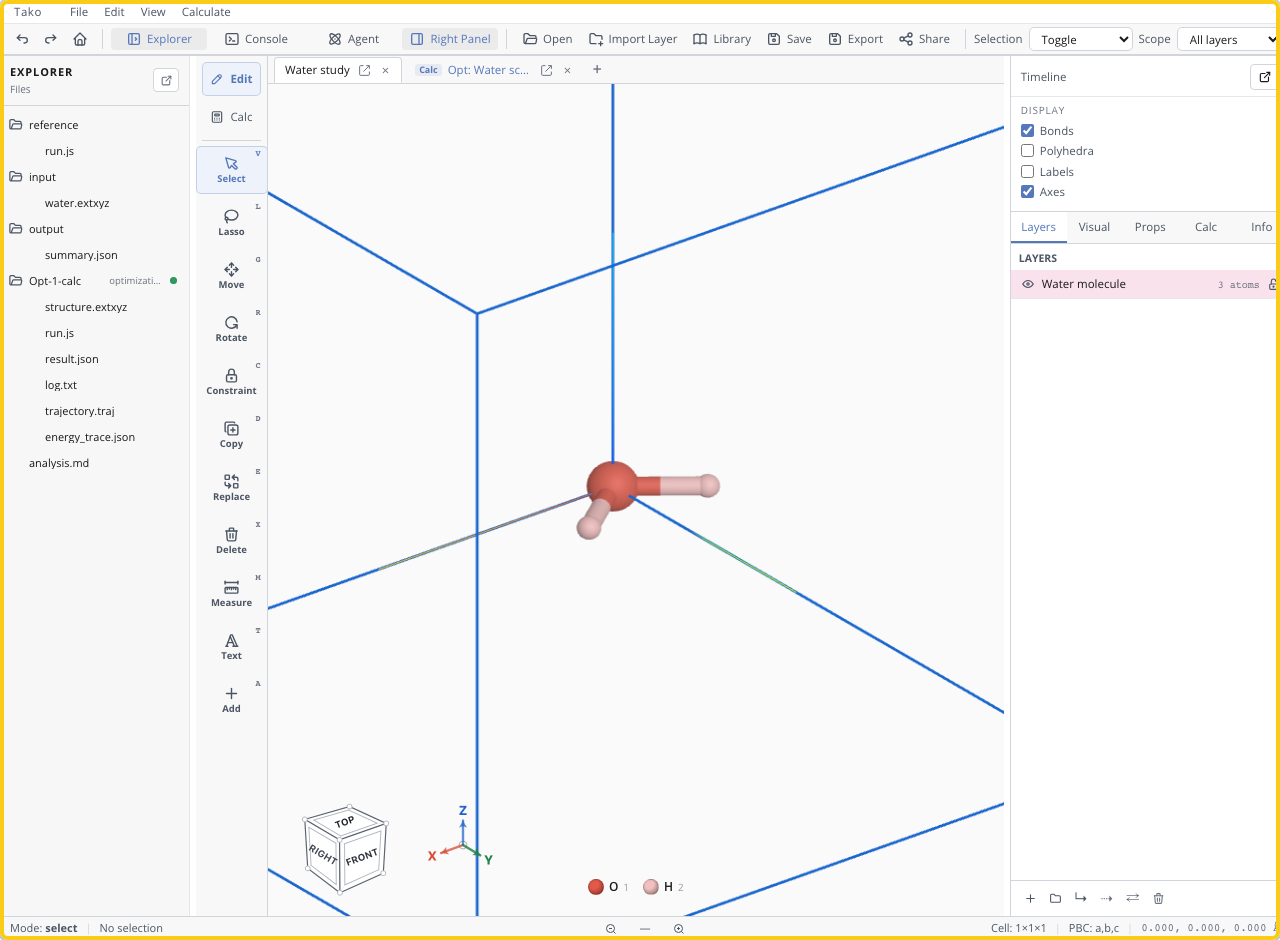
The Tako, File, Edit, View, and Calculate menus expose the full command set. The icon row underneath keeps frequent actions—undo, panels, save/export, and share—within one click; open, import, and Library live in the File menu.
Explorer
Explorer is the workspace’s file and artifact tree. It can contain:
- Structure files such as
.extxyz, POSCAR, and CIF. - Tako Script files such as
reference/run.js. - Notes and reports such as
analysis.md. - Calculation folders containing
log.txt,result.json, structures, trajectories, spectra, plots, or cubes.
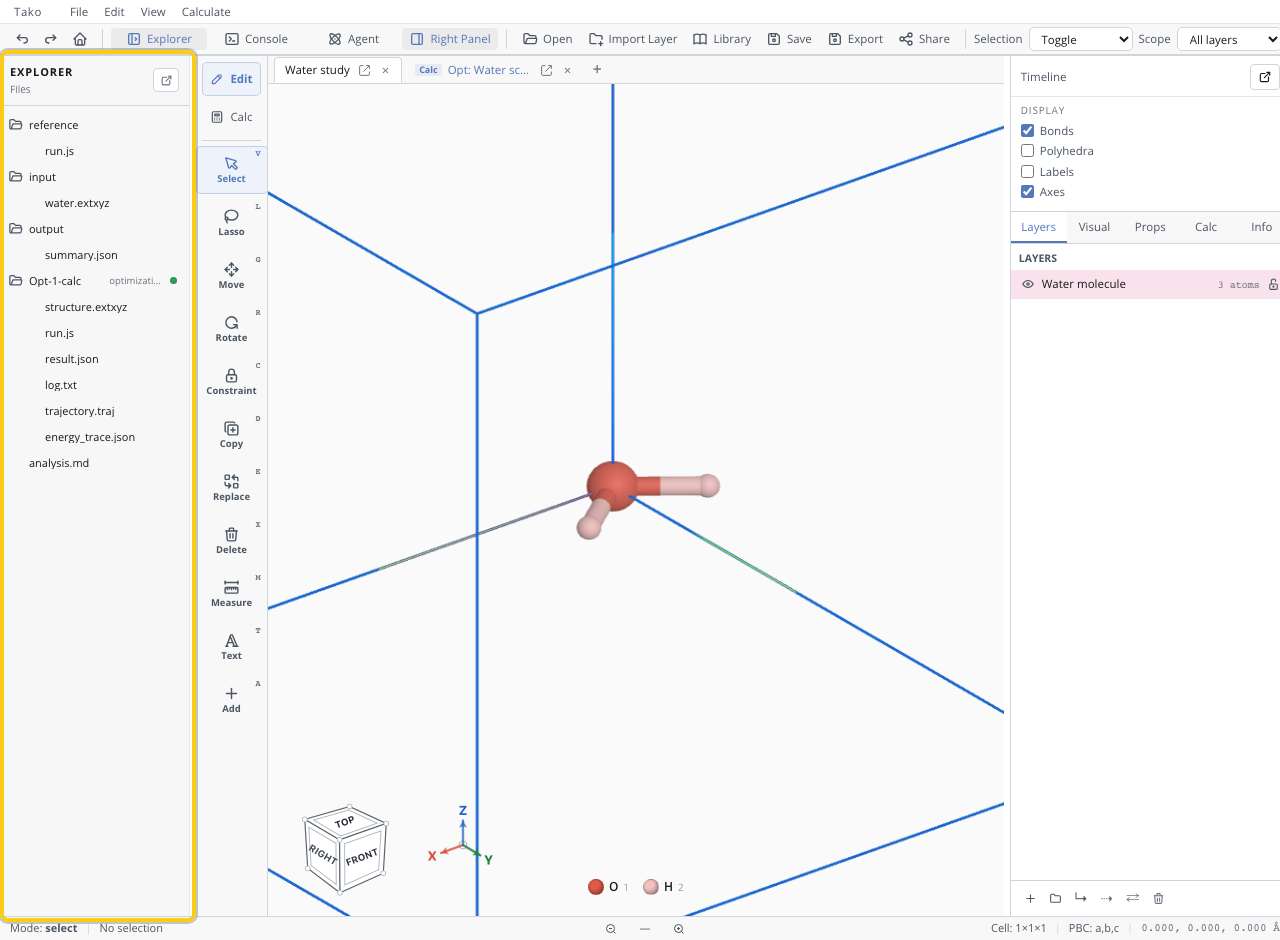
Click a file to open it; right-click for actions such as rename, copy, delete, export, open as structure, edit as text, or pin as a layer. Calculation status dots communicate lifecycle: running, completed, or failed/canceled. A failed folder may contain partial files, so inspect log.txt before using them.
Structure tabs and viewport
Each tab holds one active structure context with its own layers, history, and calculations. Use tabs to keep systems such as a molecule, a crystal, and a derived structure separate. Pin important tabs to reduce accidental closure, and use the popout control when a structure needs its own window.
The viewport displays atoms, bonds, periodic cells, annotations, and pinned three-dimensional artifacts. Drag to rotate, zoom or pan with the pointer controls, and use the Navigation Cube or Orientation Axes for standard directions.
The internal UI sometimes calls a structure tab a “project.” In the user documentation, “workspace” means the complete browser workspace and “structure tab” means one of these independent contexts.
Edit and Calc tools
The vertical toolbar switches between two modes:
- Edit exposes Select, Lasso, Move, Rotate, Constraints, Duplicate, Replace, Delete, Measure, Text, and Add tools.
- Calc exposes Single Point, Optimization, Molecular Dynamics, Phonon, XRD, Vibration, sTDA, and the combined Reaction Path / TS workflow.
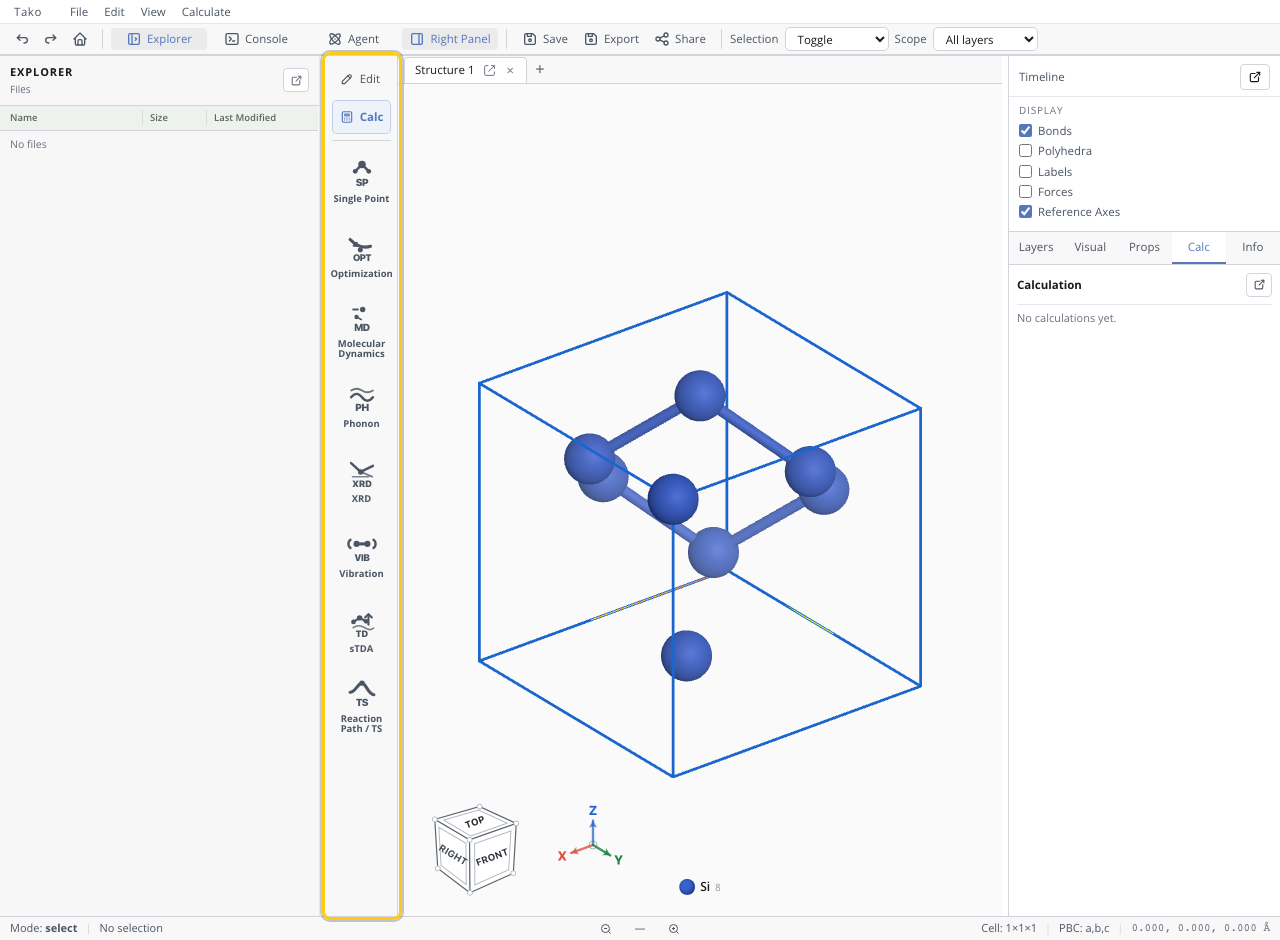
Edit mode is for changing or selecting atoms. Calc mode is for opening calculation setup. If atoms stop responding to selection, check whether the toolbar is still in Calc mode.
The top Calculate menu opens the same setup dialogs as the Calc toolbar.
Right panel and results
The right panel combines display state and scientific output:
| Area | Purpose |
|---|---|
| Timeline | Opens full undo/redo history |
| Display | Toggles bonds, polyhedra, labels, and axes |
| Layers | Visibility, locks, grouping, and pinned artifact layers |
| Visual | Render style, colors, and radius choices |
| Props | Cell, coordinates, and selected-atom properties |
| Calc | Progress, metrics, plots, trajectories, and calculation artifacts |
| Info | Compact structure and coordinate summary |
When a calculation starts, Explorer receives a calculation folder and the Calc tab shows progress. After completion, use both views: the Calc panel is convenient for interpretation, while the files in Explorer are the durable, auditable result.
Windows and popouts
Explorer, Console, the right panel, history, structure views, editors, reports, and scientific viewers can open as floating windows. Floating a view does not create a second copy of its data; it presents the same workspace state in another window.
Use popouts when you need to compare a script with its output, keep the Console visible during a run, or inspect a plot beside the structure. Close or dock a window when space matters more than simultaneous comparison.
Where to go next
| Goal | Continue with |
|---|---|
| Run a first calculation | Five-Minute Ethanol Calculation |
| Understand calculation folders and outputs | Calculation Overview |
| Choose a model | Choose a Calculator |
| Automate several stages | Write Your First Tako Script |
| Export or share work | Share and Export Work |
| Understand local execution and privacy | How Tako Runs Calculations |