 Tako Docs
Five-Minute Ethanol Calculation
On this page
You will load ethanol from Tako’s Library, calculate its energy and Mulliken partial charges with GFN2+D4, and inspect both the numerical result and charge labels. This is the shortest complete Tako workflow: one structure, one calculation, and one result folder.
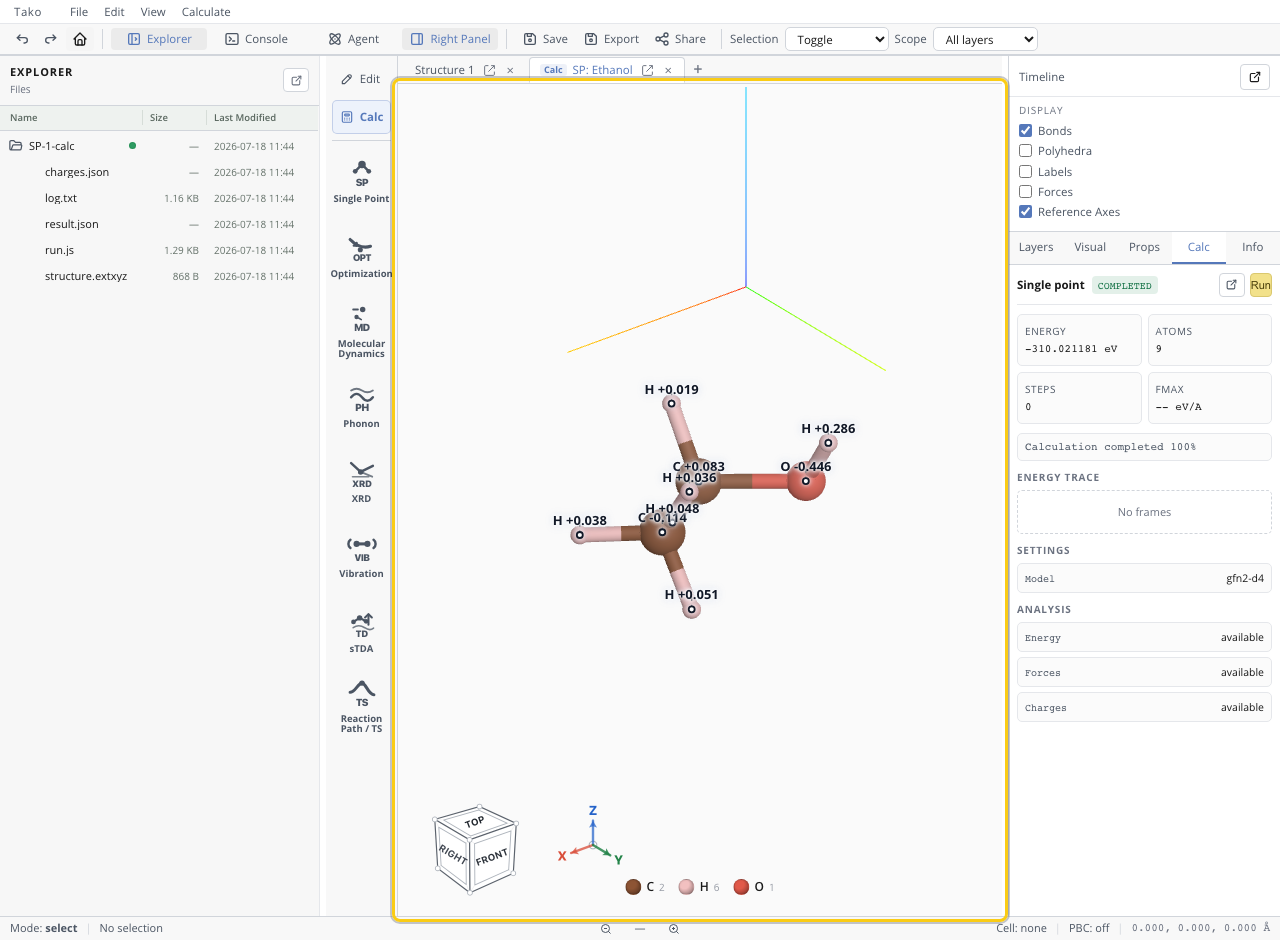
At the end, the right Calc panel will show a completed single-point energy and the viewport will show a negative oxygen, a positive hydroxyl hydrogen, and smaller charges over the carbon framework.
Before you start
| Requirement | What to expect |
|---|---|
| Experience | None; this is the recommended first calculation |
| Time | About 5–10 minutes, including the first model download |
| Structure | Ethanol from the bundled Library |
| Calculator | GFN2+D4 |
| Outputs | Energy, forces, and Mulliken charges |
If this is your first Tako session, the tb WebAssembly engine downloads when you start the calculation. Keep the tab open until the status reads Completed.
Step 1: Load ethanol
Action. Open File → Library, search for ethanol, and choose Insert on the Ethanol entry. Click once in the viewport to place it.
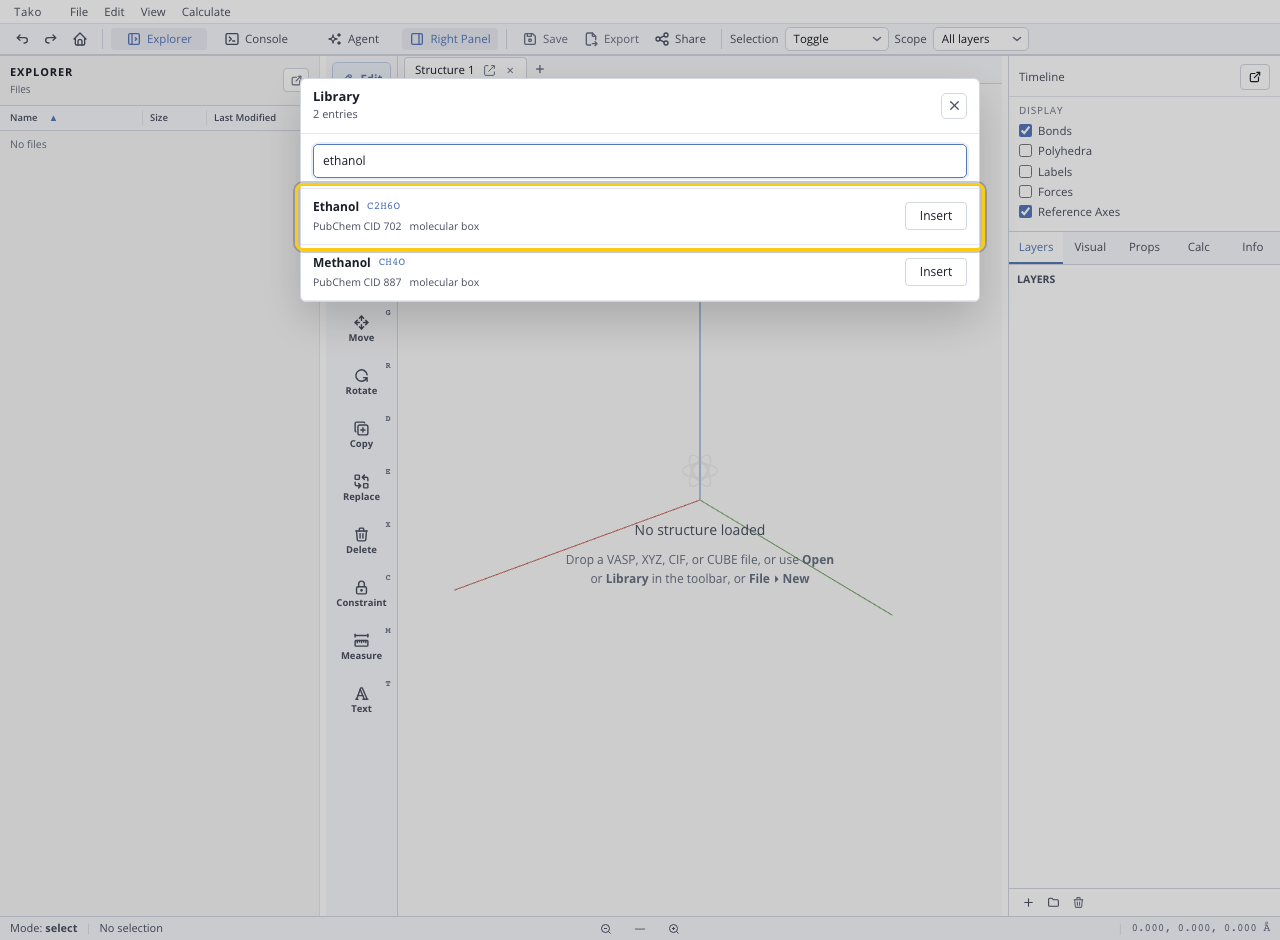
Expected state. The viewport contains nine atoms with a C–C–O backbone, and a new structure tab is active.
Checkpoint. The structure contains two carbon atoms, one oxygen atom, and six hydrogen atoms. If the cursor is still carrying a preview, click the viewport once to finish placement.
Step 2: Set up the calculation
Action. Switch the left toolbar to Calc, choose Single Point, set Level of theory to GFN2-xTB, and leave Dispersion on Default - D4. Leave Energy and Forces enabled, enable Charges, and disable DOS and PDOS for this first run.
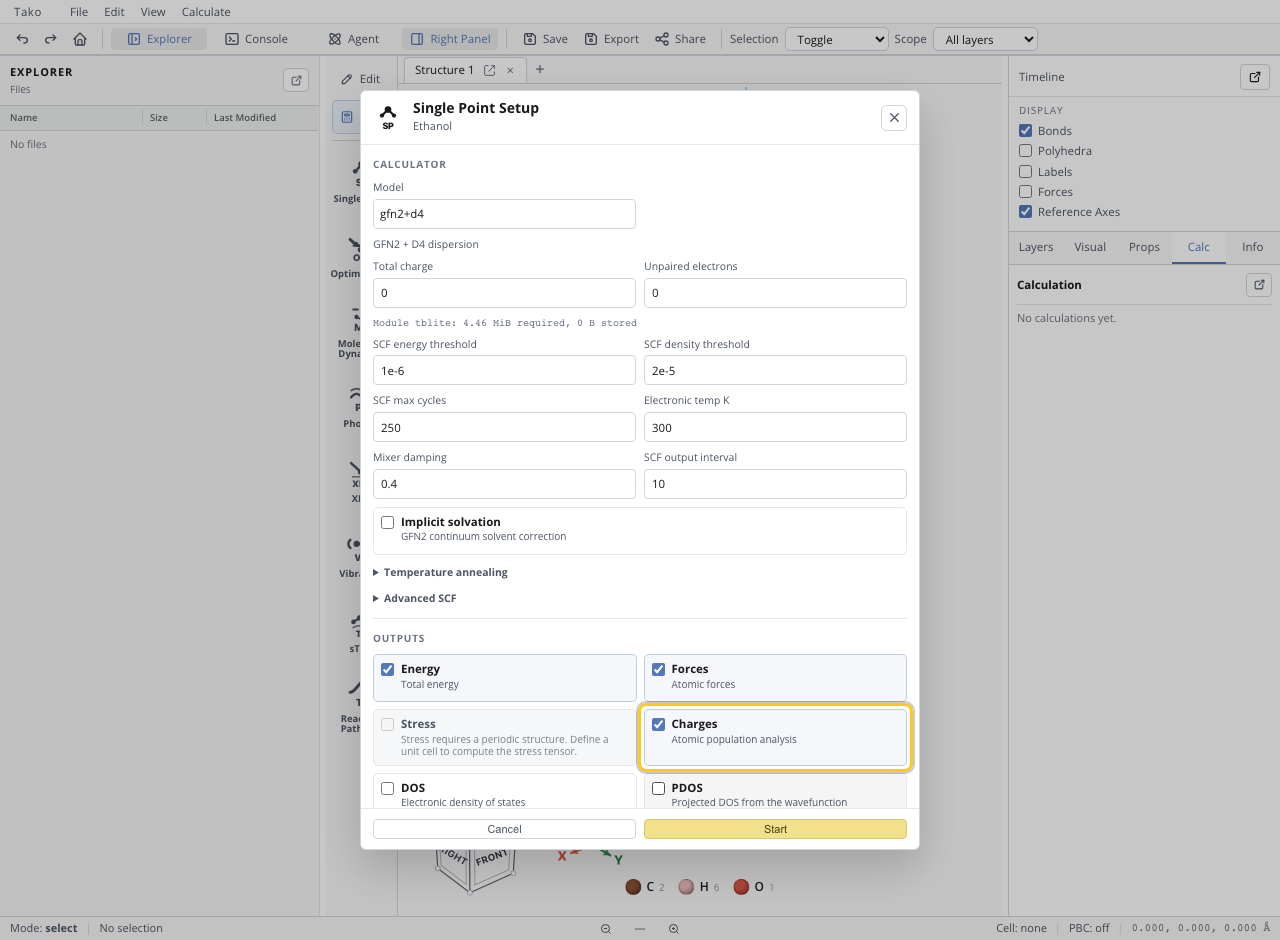
GFN2 exposes electronic outputs such as Mulliken charges because it performs a tight-binding electronic-structure calculation. MLIP calculators normally provide energy, forces, and sometimes stress, but not an electron-density population analysis.
Expected state. The output list contains Energy, Forces, and Charges.
Checkpoint. Confirm the calculator before starting. Energies and charges produced by different methods use different references and are not directly comparable.
Step 3: Run and verify it
Action. Click Start. Wait for the calculation status to become Completed, then open the right panel’s Calc tab.
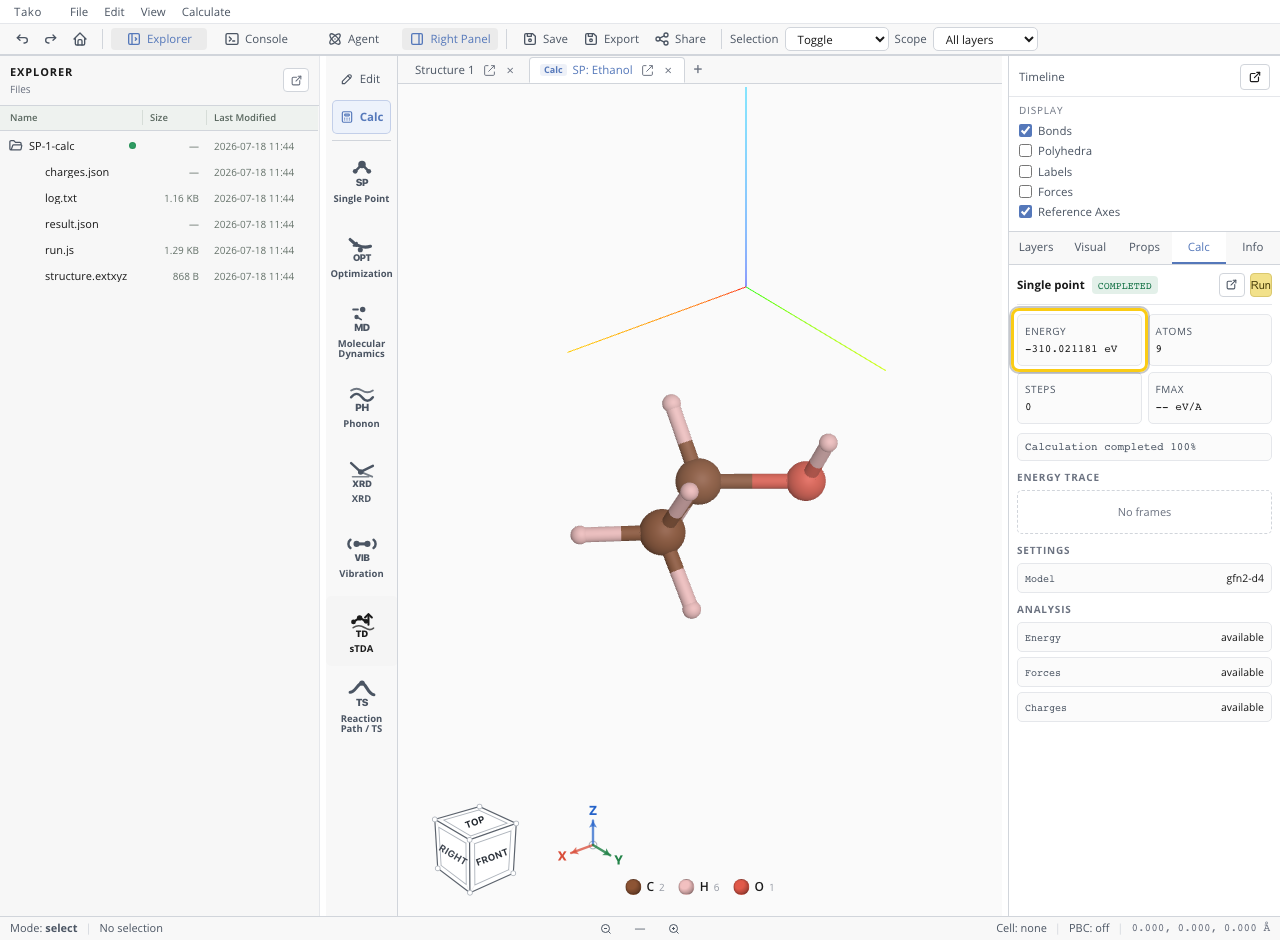
Expected state. Explorer contains a new single-point calculation folder with result.json, log.txt, the input structure, and a charges artifact. The Calc panel displays a total energy in eV and marks Charges as available.
Checkpoint. Treat the run as successful only when it completed without an error and the requested properties are present. A total electronic energy is useful for comparison with a related structure calculated using the same method and settings; its large negative value is not a bond energy by itself.
Step 4: Read the charges
Action. Expand the calculation folder, right-click charges.json, and choose Pin as layer.
Expected state. Charge labels appear beside the atoms and a toggleable charge layer appears in the Layers panel.
Checkpoint. The oxygen should carry the strongest negative charge, while the hydrogen attached to oxygen should be more positive than the hydrogens attached to carbon. Exact values are model- and population-analysis-dependent; the chemically sensible pattern is the important first check.
Check your result
| Check | Pass condition | If it fails |
|---|---|---|
| Calculation status | Completed | Open log.txt and inspect the final error |
| Energy | A finite value in eV is shown | Confirm Energy was requested and the run completed |
| Charges artifact | charges.json exists | Re-run with GFN2+D4 and Charges enabled |
| Charge pattern | O is most negative; O–H hydrogen is strongly positive | Verify the structure and calculator |
You have completed the full Tako loop when all four checks pass: structure loaded, calculation completed, artifacts written, and result interpreted.
Common problems
| Symptom | Likely cause | Fix |
|---|---|---|
| Charges is unavailable | An MLIP is selected | Switch the calculator to GFN2 or GFN2+D4 |
| The first run appears slow | The tb engine is downloading | Keep the tab open and watch download progress |
| No charge labels appear | The JSON file was opened rather than pinned | Right-click charges.json and choose Pin as layer |
| The values look chemically unreasonable | The structure is malformed or the wrong artifact is open | Reload ethanol from the Library and repeat the run |
| You want to compare two energies | A single absolute energy has no standalone interpretation | Use the same calculator/settings on both related structures |
For a multi-stage molecular calculation, continue with Optimize Water and Run Vibrations. The Workspace Tour documents the remaining controls and workspace regions.