 Tako Docs
Optimize a Structure
On this page
Use Optimization to relax atomic coordinates on the selected calculator’s potential-energy surface. A periodic structure may also expose selected cell degrees of freedom. The procedure changes the active project by creating a calculation workspace; it does not overwrite the source layer.
The scientific meaning of the force criterion, the optimizer algorithms, cell strain, constraints, and minimum verification is developed in Geometry Optimization. This page describes only the interface.
Input state
Display the structure to be optimized and make its layer visible. Inspect short contacts and confirm that periodic structures have the intended cell. Apply atom constraints before opening the setup dialog; the dialog does not create or edit constraints.
When more than one compatible visible layer exists, select the intended structure before starting. A cell belonging to an unrelated visible periodic layer makes the selection ambiguous; hide that layer or select the intended one explicitly.
Open Optimization Setup
Open the calculation in either of these ways:
- Press Calc in the left rail, then press Optimization.
- Open Calculate in the top menu and select Optimization.
The Optimization Setup dialog appears. Its subtitle identifies the current structure, or displays Visible structure when no structure title is available. The upper Calculator section is shared with other calculations; select and validate the calculator there before editing optimization controls. Model availability is shown as static asset status until Start is pressed. Download and numerical progress appear only after the calculation begins.
Set the atomic relaxation
The Optimization section contains the controls used for atomic steps.
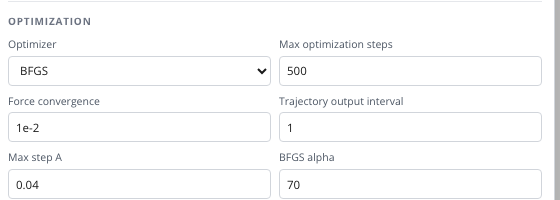
- Select BFGS, FIRE, or MDMin under Optimizer.
- Enter the step budget under Max optimization steps. The current WASM execution path caps the effective budget at 500 even if a larger number is entered; use 500 or less so the displayed request and executed budget agree.
- Enter the stopping threshold under Force convergence. The value is interpreted in eV/Å.
- Enter the saved-frame interval under Trajectory output interval. A value of 1 stores every emitted optimization frame; a value of 10 stores every tenth frame.
- Enter the step limiter under Max step A. For a fixed cell it limits the largest atomic displacement in Å. With cell relaxation active, it applies to the augmented atomic-and-cell optimizer coordinates and is not a purely atomic displacement limit.
- If BFGS is selected, enter its initial Hessian scale under BFGS alpha. The field remains visible for the other optimizers but does not define their update law.
The defaults shown by a new dialog are BFGS, 500 steps, 0.01 eV/Å force convergence, frame interval 1, 0.04 Å maximum step, and BFGS alpha 70. These are the current application defaults, not universal scientific recommendations.
Select cell degrees of freedom
Leave Cell relaxation collapsed for a fixed-cell molecular relaxation. For a periodic structure, expand Cell relaxation when lattice variables are part of the calculation.
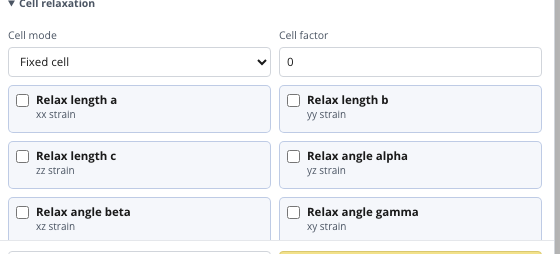
Select one value under Cell mode:
| Visible value | Cell variables admitted by the setup |
|---|---|
| Fixed cell | No cell length or angle changes |
| Lengths + angles | All three normal and all three shear strain components |
| Lengths only | The three normal components associated with lengths a, b, and c |
| Angles only | The three shear components associated with α, β, and γ |
| Custom mask | Only the checked length and angle components |
Cell factor scales the cell degrees of freedom in the variable-cell optimizer. Zero invokes the engine’s default scaling behavior. Record a nonzero value because it changes the relative numerical conditioning of atomic and cell steps.
In Custom mask, check Relax length a, Relax length b, or Relax length c for the xx, yy, or zz strain component. Check Relax angle alpha, Relax angle beta, or Relax angle gamma for the yz, xz, or xy component. The checkboxes display the component mapping directly beneath each label.
Do not select a variable-cell mode for a structure without a periodic cell. Do not select it with a calculator that cannot return stress. The request is rejected rather than silently converted to a fixed-cell optimization.
Start and monitor the calculation
Press Start. The setup dialog closes and a calculation workspace becomes active. The right-side Calc tab and Console show the running state, asset preparation, optimizer messages, energy, and force information. A trajectory becomes available as frames arrive.
Open the trajectory from the calculation output and move through its frames to inspect atomic motion (general frame-scrubbing and extraction mechanics are in Inspect Trajectories). A smooth energy decrease is useful evidence but is not itself the convergence test. Watch for bond breaking, atom overlap, unexpected cell collapse, or motion blocked by an unintended constraint.
Press the calculation’s cancel control only when the run should be terminated. Cancellation is recorded as cancellation; it does not produce a restartable optimizer checkpoint.
Inspect the completed workspace
On normal completion, open result.json and require converged: true. Compare final_fmax_ev_per_angstrom with the requested Force convergence value and inspect steps against Max optimization steps. A result at the step limit with converged: false is not an accepted optimized structure.
Extract the final frame as a structure using the general procedure in Inspect Trajectories — there is no separate final-structure artifact in an optimization workspace, so trajectory.traj is the only source. Inspect that final frame and confirm:
- the intended atoms moved and constrained atoms obeyed their mobility flags;
- molecular connectivity and noncovalent contacts remain chemically plausible;
- a variable cell retained physically meaningful lengths, angles, volume, and density;
- the structure did not cross into an unintended basin merely to satisfy the force gate.
The calculation folder retains result.json, log.txt, trajectory.traj, and energy_trace.json.
Distinguish convergence from a minimum
The interface reports numerical convergence of this optimization. It does not classify the stationary point. Run molecular vibrations for a molecule or phonons for a periodic solid when the absence of negative-curvature modes is required. Preserve the optimization result and its calculator settings with that follow-up calculation so the curvature test can be interpreted against the same geometry and model.
Irregular termination
| Visible condition | Interpretation | Action |
|---|---|---|
| Asset status remains missing before Start | Required module or model is not cached | Open File → Model Manager, complete or resume the download, then reopen the calculation |
| Calculation stops at the step budget | Force gate was not met | Inspect the trajectory and log before increasing the budget or changing the optimizer |
| Geometry changes discontinuously | Starting contacts, step size, model domain, or optimizer behavior is unsuitable | Reject the result; repair the input or use a more conservative step |
| Energy or force oscillates | Surface noise or optimizer/step mismatch | Inspect whether a stable floor has been reached; change settings only with a recorded reason |
| Frozen atoms carry large forces | Constraints exclude motion but may not remove every reported raw-force contribution | Inspect mobile-atom motion and document the constrained-force convention |
| Cell does not change | Fixed cell is selected, no component is enabled, or stress is unavailable | Correct the mode, custom mask, or calculator request |
| Workspace records an error | Validation, asset loading, calculator execution, serialization, or worker shutdown failed | Read log.txt; do not use partial frames as a completed result |